
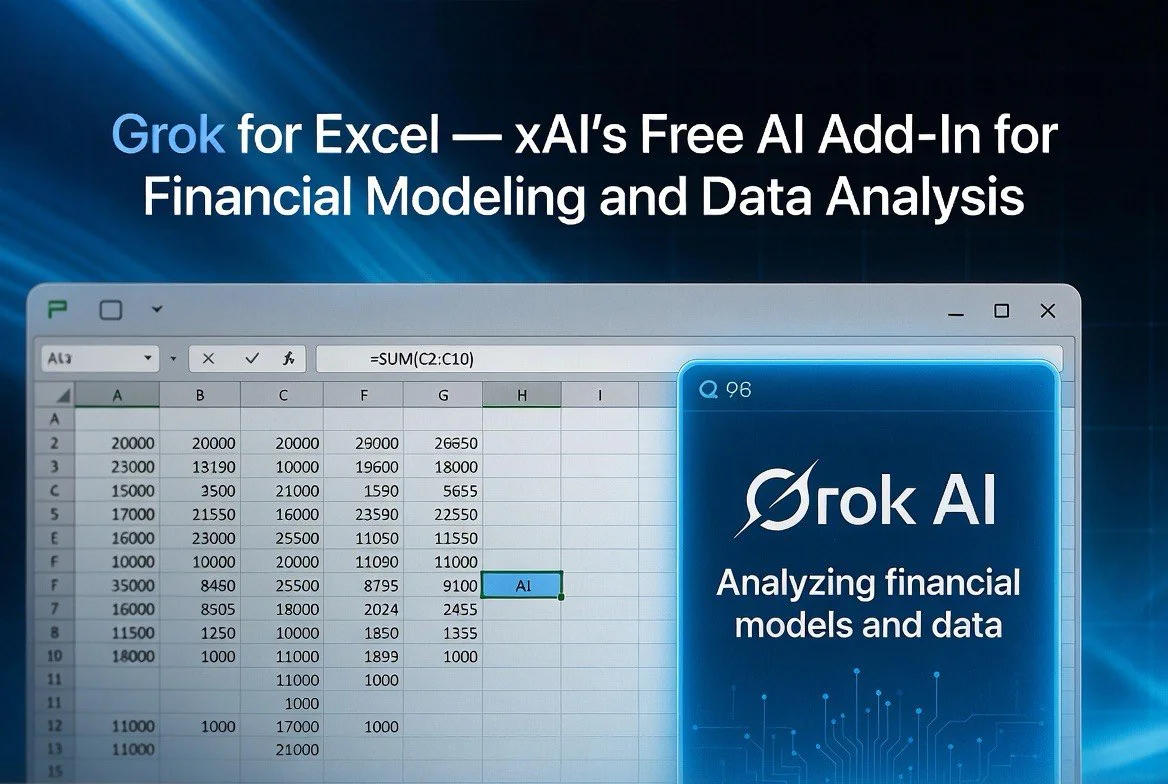
Grok for Excel — xAI’s Free AI Add-In for Financial Modeling and Data Analysis
⚡ Expert Summary: xAI launched Grok for Excel on July 20, 2026 — a free AI add-in that turns natural language prompts into workbook actions inside Microsoft Excel. For US small business owners, it covers financial modeling, data analysis, formula generation, and scenario testing. It’s free to install, compared to Microsoft Copilot’s roughly $30/user/month licensing. Grok handles your spreadsheets in a sidebar while you work, no subscription required.
Microsoft Copilot in Excel costs about $30 per user per month. That means a five-person small business in the United States pays $1,800 per year just for spreadsheet AI. If you do not use the rest of the Microsoft 365 Copilot suite, that’s a painful line item for a single application.
Enter xAI’s Grok for Excel. Launched July 20, 2026 (The Register, July 2026), the add-in installs as a sidebar inside Excel and lets you describe what you want in plain English. “Build a profit and loss model for Q3 with three revenue streams and 75% gross margin.” Grok writes the formulas, builds the spreadsheet, and you keep what works.
The key difference from Copilot isn’t capability — it’s cost and focus. Grok is a dedicated spreadsheet assistant with no broader Microsoft 365 tie-in. It does one thing and does it for free.
What Grok for Excel Actually Does
Based on the feature set described in the launch coverage (Teach AI Tools, July 2026), Grok for Excel handles the core spreadsheet operations that small business owners deal with daily:
| Feature | What It Does | Time Saved |
|---|---|---|
| Formula generation | Describe a calculation in natural language; Grok writes the Excel formula | 5-15 min per complex formula |
| Data analysis | Ask questions about your data set; Grok returns answers with supporting cells highlighted | 10-30 min per analysis |
| Financial modeling | Describe a model structure; Grok builds the layout, formulas, and scenario structure | 30-60 min per model |
| Scenario testing | Run “what if” scenarios by describing the variables; Grok applies them | 15-20 min per scenario |
| Data cleaning | Identify and fix formatting issues, duplicates, missing values | 20-40 min per sheet |
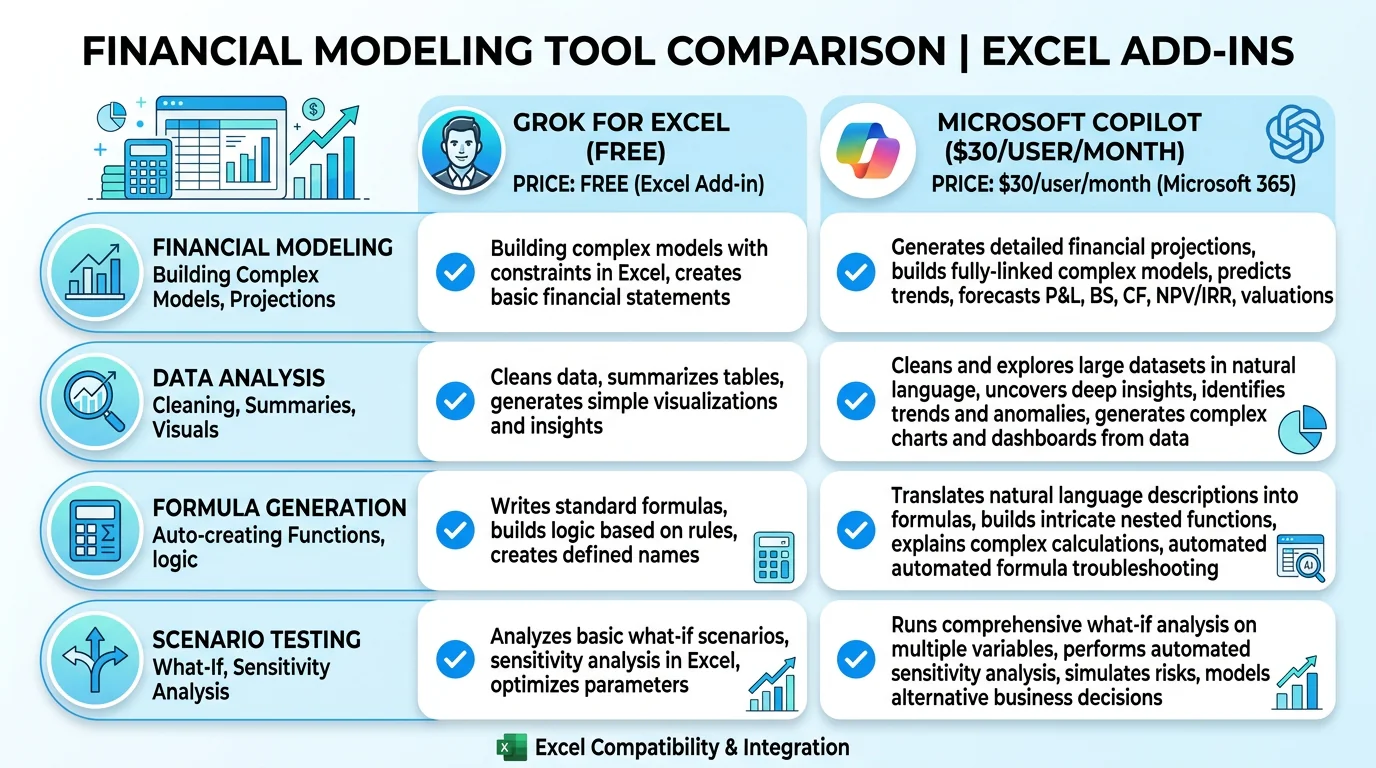
Grok for Excel vs Microsoft Copilot: feature comparison. Grok covers financial modeling, data analysis, formula generation, and scenario testing at zero cost — all features that cost 0/user/month with Copilot.
The add-in runs as a sidebar panel (OneMetrik analysis, July 2026). You select a cell or range, type a prompt, and Grok generates the result in place. No switching between applications. No copying and pasting results from a chat interface.
What this looks like in practice: open Excel, click the Grok tab, and a sidebar appears on the right side of your screen. Highlight the cells you want to work with, type your prompt in plain English, and Grok applies the result. The formula ap-pears in the formula bar where you can inspect it, edit it, or use it as a template for similar calculations elsewhere. For financial modeling, you can describe a complete model structure — revenue streams, cost categories, margin calculations — and Grok builds the scaffolding including row labels, column headers, formulas, and totals.
This is significantly different from the Copilot approach. Microsoft’s COPILOT function lives inside individual cells and is formula-based itself. Grok operates from the sidebar and writes formulas for you — you see the result in the cell, but the thinking happens in the panel. For users who are comfortable reading formulas but not writing them, this is the better workflow.
How Grok Compares to Microsoft Copilot in Excel
The comparison with Copilot is inevitable, and xAI seems to have designed around it strategically:
| Grok for Excel | Microsoft Copilot | |
|---|---|---|
| Price | Free add-in | ~$30/user/month |
| Installation | Add-in store | Part of M365 subscription |
| Integration depth | Sidebar, prompt-to-action | In-cell COPILOT function + across M365 suite |
| Excel focus | Dedicated, full attention on spreadsheets | One of many integrations in the suite |
| Best for | Independent businesses that primarily use Excel | Organizations using the full M365 stack |
Copilot has the advantage of deeper integration — it can reference emails, calendars, and documents across the Microsoft ecosystem. But for a small business that lives in Excel — which is most of them — Grok’s dedicated focus and zero price point make it the practical choice for spreadsheet-specific work (UseCarly comparison, July 2026).
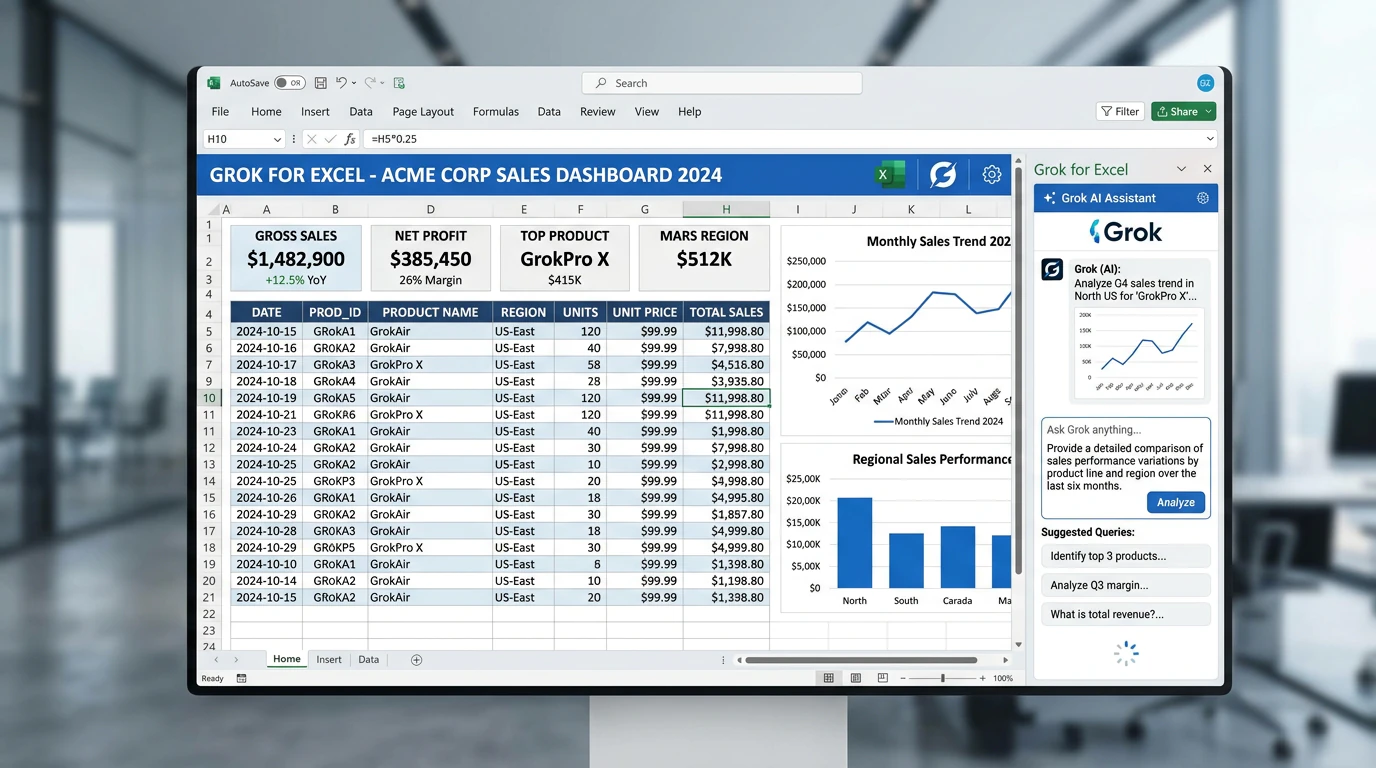
The Grok for Excel sidebar interface. Type a question in natural language and Grok builds the formulas, runs the analysis, and populates results directly into your workbook.
Four Use Cases Where Grok for Excel Wins
1. Financial Models From a Single Description
You type: “Build a cash flow projection for the next 12 months based on current monthly revenue of $45,000, 60% COGS, and 15% operating expenses.” Grok builds the model with row labels, formulas, monthly columns, and a summary row. You verify and adjust. The alternative is 45 minutes of manual formula entry.
2. Complex Formulas in Seconds
Instead of Googling “Excel nested IF with AND/OR conditions,” you type the business logic in plain English: “Apply a 10% discount if the order value is over $500 AND the customer is on the premium plan, otherwise apply 5% if over $250.” Grok writes the formula. You paste it in.
3. Data Analysis Without Pivot Table Skills
You select a data set and ask: “Show me which months had the highest revenue growth month over month.” Grok analyzes the range, applies conditional formatting to highlight top performers, and inserts a mini-chart. No pivot tables. No chart wizard. Just a question and an answer.
4. Scenario Testing for Business Decisions
“What is the impact on net profit if we raise prices 8% but lose 12% of volume?” Grok creates three columns — current, proposed, delta — and populates them with the calculated results. You test as many scenarios as you want without touching a formula.
What Grok for Excel Does Not Do
Honesty matters. Grok for Excel is not a full replacement for Copilot if you rely on the broader Microsoft 365 ecosystem. It does not integrate with Outlook, Teams, or SharePoint. It does not pull data from your emails or calendar. It is a spreadsheet-only assistant.
There are also practical limitations. Grok’s ability to handle very large data sets — say, 100,000 rows or more — has not been benchmarked in independent testing at launch. The sidebar interface works well for focused tasks but may feel cramped if you are doing heavy multi-panel analysis. And because Grok executes prompts by writing formulas or restructuring your sheet, there is an undo limit: once you accept a change, recovering the previous state requires manual undo or a saved backup.
For US small businesses running financial models on data sets of 5,000 to 50,000 rows — which covers the vast majority of SMB use cases — these limits are unlikely to matter. But if you routinely work with huge data warehouses inside Excel, you will want to test Grok’s performance on your actual workload before switching entirely.
It also requires an internet connection — there is no offline mode at launch. And it uses the Grok AI model via xAI’s servers, which means your spreadsheet data is processed externally. For most US small businesses, this is not a security concern. For those handling sensitive financial data, it is worth noting.
According to The Register’s coverage, the add-in works with Excel for Microsoft 365 on Windows and Mac (The Register, July 2026). No word yet on Excel for the web or mobile support.
How to Install and Get Started
Installing Grok for Excel takes less than two minutes. Open Excel, navigate to the Insert tab, click “Get Add-ins” (Office Add-ins on Mac), search for “Grok for Excel,” and click Add. The sidebar appears immediately. You will need an xAI account, which is free to create with an email address at x.ai.
Once installed, start with one of the built-in templates to get a feel for how prompts translate into spreadsheet actions. There are templates for financial projections, data cleanup, and formula building. After that, try describing a real spreadsheet problem you have right now — something that would take you 15 minutes to build manually. Watch what Grok produces. Accept or modify. That is the entire learning curve.
The add-in remembers your conversation history within a session, so you can refine prompts: “Make the revenue row bold and apply currency formatting” after Grok builds the initial model. This iterative refinement is where the tool saves the most time — not the first prompt, but the second and third corrections that would normally mean redoing work from scratch.
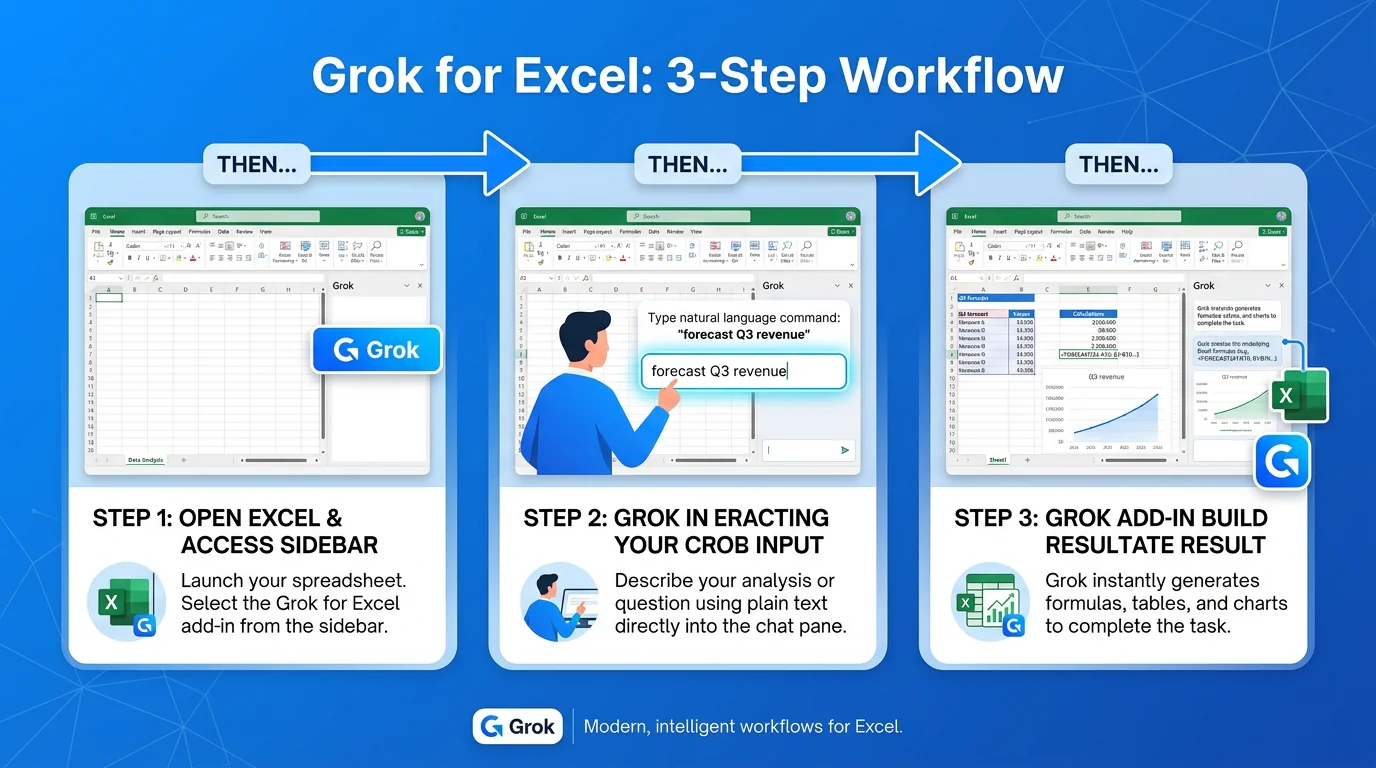
Three-step workflow: open Excel, type your request in natural language, and let Grok handle the formulas. Average setup time under 30 seconds.
Should You Switch From Copilot?
If you run a small business and your AI spend includes a Microsoft 365 Copilot subscription that you bought mainly for Excel, the math is straightforward. A five-person team at $30/user/month costs $1,800 per year. Grok for Excel does the spreadsheet work for free. If you do not use the rest of the Copilot suite actively, you are paying $1,800 annually for functionality you can get without a subscription.
If you use Copilot across Word, Outlook, Teams, and Excel — the full Microsoft ecosystem — then Grok makes sense as a supplement for Excel-specific tasks, not a replacement. Install both. Use Grok for spreadsheet work and Copilot for everything else.
The smartest setup for most US small businesses in mid-2026: keep your existing Microsoft 365 Business Basic subscription ($6/user/month) for email and Office apps. Add Grok for Excel for free. Skip the Copilot add-on. Test the combination for 30 days. You will likely find Grok handles everything you need in spreadsheets.
Frequently Asked Questions
Is Grok for Excel free?
Yes, Grok for Excel is a free add-in available through the Microsoft Excel add-in store. No subscription required.
When was Grok for Excel released?
Grok for Excel launched on July 20, 2026, with coverage from The Register and multiple tech outlets on July 21-22.
What can Grok for Excel do?
Grok generates Excel formulas from natural language, builds financial models, analyzes data sets, runs what-if scenarios, and cleans up formatting issues — all from a sidebar panel in Excel.
How does Grok for Excel compare to Microsoft Copilot?
Grok is free and focused specifically on Excel. Microsoft Copilot costs roughly $30/user/month but integrates across the full Microsoft 365 suite including Outlook, Teams, and Word.
Is Grok for Excel available on Mac?
Yes, the Grok for Excel add-in works with Excel for Microsoft 365 on both Windows and Mac.

About Barak Schurr
Barak Schurr is the founder and former president of the nightlife ticketing platform Wantickets and former Global Director of Dance and Nightlife at Eventbrite. He currently focuses on AI research and writes about practical AI for independent business owners that actually moves the needle — no hype, no corporate fluff. More at topnotchaitools.com.
Contact: [email protected]
More AI Resources for Your Business